Getting Started with cURL

I have a Web Development knowledge and Strong JavaScript and frontend development expertise for creating user-friendly websites along with impressive functionalities. I can deliver maintainable and scalable code with Best Practices of coding, SEO and Web accessibility. I can create website with AI Integration or Rag Systems.
Before cURL, developers needed a way to send a request to a server(A machine which can serve something like files, static assets etc.) API and see the response directly in the command line instead of clicking through a browser’s graphical interface and going through the whole UI just to get the data.
That’s why cURL was created. cURL basically says, “Just give me the API endpoint, and I’ll send the request to the server to fetch the data.”
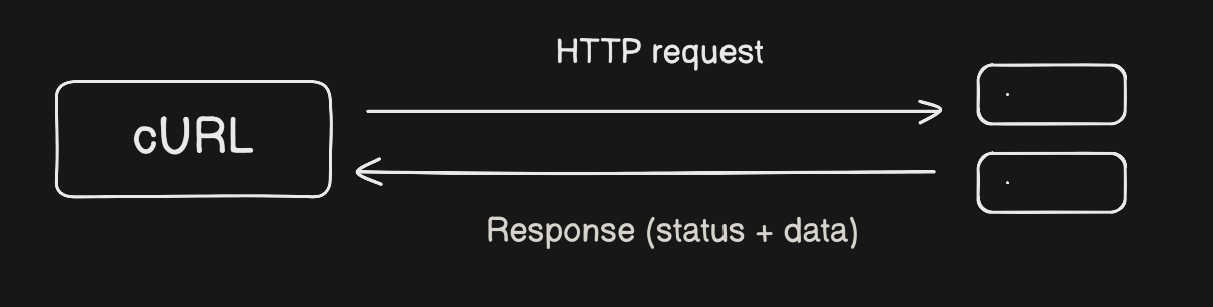
What is cURL?
cURL is a command line tool which can communicate directly to the server using the API.
For example:- Sending(POST), Receiving(GET), updating(PATCH) the data.
Steps to Use
First you have to check that cURL installed on your machine or not. By Default windows/linux/mac are comes with cURL but you can download the manually.
Open command prompt and type this command:
curl --version
If curl version printed then curl is installed in your system otherwise you have to download the cURL from the official website cURL.
Simple Get Request ( Receiving the data)
curl https://dummyjson.com/test
type curl and the URL of that particular server where you want to send the get request.
{
  "id": 1,
  "title": "His mother had always taught him",
  "body": "His mother had always taught him not to ever think of himself as better than others. He'd tried to live by this motto. He never looked down on those who were less fortunate or who had less money than him. But the stupidity of the group of people he was talking to made him change his mind.",
  "tags": [
    "history",
    "american",
    "crime"
  ],
  "reactions": {
    "likes": 192,
    "dislikes": 25
  },
  "views": 305,
  "userId": 121
}
After press Enter you will see this data into your command line ,Remember formatting is would be Different.
Simple POST Request (Sending the data)
IF we want to post a data into server URL so we have to follow this curl command.
For Linux, macOS, and Git Bash on Windows:-
curl -X POST -d '{"title": "curl is awesome", "userID": 5}' https://dummyjson.com/posts/add
Here:
-X POST tells curl that Hey I want to use the POST method.
-H “content-Type: application/json” tells the server that whatever data in sending in the Body it is JSON.
-d ‘{…}’ is the actual JSON data you are sending.
DummyJSON is a fake REST API service for testing and prototyping, so when you send this POST it will respond back with what you sent plus a generated id simulating a successful save. It doesn’t really store the data permanently, but it acts like it did so you can test your APIs
{"id":252,"title":"I am in love with someone.","userId":5}For Windows Command Prompt (CMD):-
If you are on windows CMD or PowerShell, you may need to escape the double quotes in JSON like this
curl -X POST -H "Content-Type: application/json" -d "{\"title\":\"I am in love with someone.\",\"userId\":5}" https://dummyjson.com/posts/addBecause Windows shells don’t treat single quotes the same way Linux shell do.
Here is a problem that command is coming into the one line that very difficult to read and manage. Don’t worry you can use Backslash \ (For Linux, macOS, and Git Bash on Windows) or caret ^ ( For Windows Command Prompt (CMD)) to tell that Hey I am writing the remaining command in the new line this is not the and of the command.
For Linux, macOS, and Git Bash on Windows:-
 curl -X POST \
     -H "Content-Type: application/json" \
     -d '{"title":"I am in love with someone.","userId":5}" \
     https://dummyjson.com/posts/add
For Windows Command Prompt (CMD):-
 curl -X POST ^
     -H "Content-Type: application/json" ^
     -d "{\"title\":\"I am in love with someone.\",\"userId\":5}" ^
     https://dummyjson.com/posts/add
Downloading File
Download the file using curl command we need to specify the URL with -o or -O option to save it to your local machine.
-o command is used when you want to download the content of the URL with specific file name.
    curl -o [filename] [URL]
    # Example:
    curl -o website.html https://www.example.com
-O command is used when you want to download the content of the URL as their original name into current Directory
    curl -O [URL]
    # Example:
    curl -O https://example.com/data.zip
This is the basic command and usage of the cURL which you have to know before to use in the any devices.
If you like this article and have any suggestion to improve this article then simply comment at the bottom in this article.
#chaicode #webdev #curl #server #networking #request