Git For Beginners: Basic and Essential Commands

I have a Web Development knowledge and Strong JavaScript and frontend development expertise for creating user-friendly websites along with impressive functionalities. I can deliver maintainable and scalable code with Best Practices of coding, SEO and Web accessibility. I can create website with AI Integration or Rag Systems.
If you’ve ever worked on a coding project—whether solo or in a team—you’ve likely come across Git. It’s one of the most essential tools in a developer’s toolkit. But what exactly is Git, and why is it so important?
What is Git?
At its core, Git is a distributed version control system.
That might sound complex, but here’s what it really means: Git helps you track changes in your code, collaborate with others, and go back in time if something breaks.
Think of it as a powerful “save history” for your code — but far more advanced. With Git, every developer has their own complete copy of a project’s history on their machine, not just the latest version. This makes collaboration faster, safer, and more flexible.
Why Developers Use Git
Here are some key reasons why Git is so widely used:
Version History – You can view and restore previous versions of your project at any time.
Collaboration – Multiple developers can work on the same project without overwriting each other’s work.
Branching and Merging – You can create separate “branches” to test new features, fix bugs, or experiment—then merge them back when ready.
Backup and Distribution – Every developer’s machine is a full backup of the repository.
Integration – Git integrates seamlessly with platforms like GitHub, GitLab, and Bitbucket for online collaboration.
In short, Git helps developers work smarter, safer, and more efficiently.
Git Basics and Core Terminologies
Before diving into commands, let’s understand some key Git terms:
Repository (Repo):
A repository is your project’s storage. It contains all files, folders, and the complete history of changes.Commit:
A snapshot of your project at a specific moment. Think of it as saving a checkpoint.Branch:
A branch allows you to work on different features or ideas independently without affecting the main codebase.HEAD:
The pointer that tells Git which commit or branch you’re currently working on.Staging Area (Index):
A temporary space where you prepare changes before committing them.
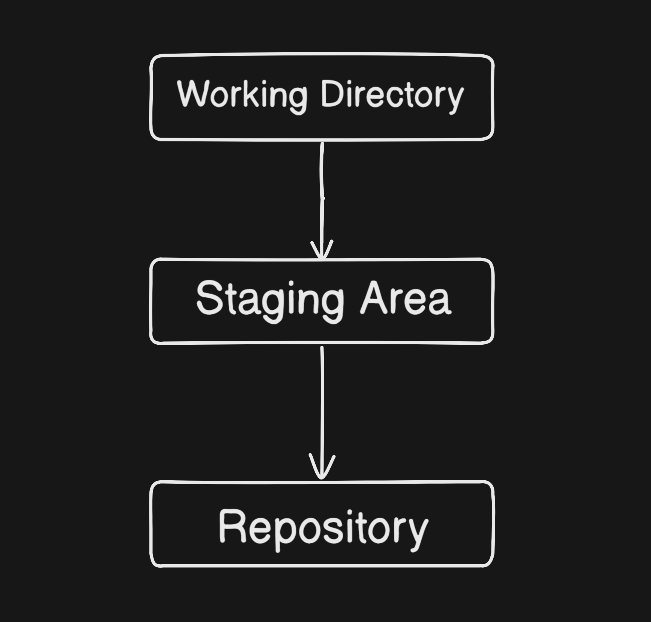
How Git Works: A Simple Flow
Here’s a basic workflow most developers follow:
Working Directory – You make changes to your files.
Staging Area – You tell Git which changes you want to include in your next commit.
Repository – You commit those changes and store them permanently in your project history.
Diagram:
Common Git Commands You Should Know
Let’s look at the essential commands you’ll use daily as a developer.
1. Initialize a Git Repository
git init
This command starts a new Git repository in your current folder.
2. Check Repository Status
git status
Shows which files have changed and whether they’re staged or not.
3. Add Files to Staging Area
git add <filename>
Adds the specified file to the staging area.
To add everything:
git add .
4. Commit Your Changes
git commit -m "Your descriptive commit message"
Creates a new commit (a snapshot) of your changes.
5. View Commit History
git log
Displays the history of commits in your repository.
6. Create and Switch Branches
git branch <branch-name>      # Create a branch
git checkout <branch-name>    # Switch to the branch
7. Merge Branches
git merge <branch-name>
Merges the specified branch into the current one.
A Simple Developer Workflow with Git
Let’s put it all together.
Imagine you’re starting a new project:
# Step 1: Initialize Git
git init

# Step 2: Add your files
git add .

# Step 3: Commit the changes
git commit -m "Initial commit"

# Step 4: Create a new branch for a feature
git branch feature-login
git checkout feature-login

# Step 5: Make changes, add, and commit again
git add .
git commit -m "Add login feature"

# Step 6: Merge back into main
git checkout main
git merge feature-login
Visualizing Git’s Structure
Imagine your local Git repository like this:
Local Repository
├── main
│   ├── Commit A
│   ├── Commit B
│   └── Commit C
└── feature-login
    └── Commit D
Each branch represents a different line of work, and commits are snapshots along that line.
Conclusion
Git is not just a tool—it’s a developer’s safety net. It allows you to experiment freely, track your progress, and collaborate without fear of losing work.
If you’re just getting started, try practicing Git commands on a small project. Once you get comfortable, you’ll wonder how you ever coded without it.
Whether you’re a solo developer or part of a global team, mastering Git is a skill that will serve you throughout your career.
#Git #VersionControl #GitHub #Coding #DeveloperTools #Programming #OpenSource #SoftwareDevelopment #DevCommunity #LearnGit #CodeNewbie #TechBlog #GitCommands #DeveloperWorkflow #GitTutorial